How to sync a local folder to an SFTP server — uploading only what changed
Re-uploading a whole site every time you change two files is slow and risky. A sync compares the two sides first and moves only the difference — and a good one shows you the plan before it touches the server.
Velocity Bridge is a free FTP, FTPS and SFTP client for Windows. Its sync compares a local folder with a remote one, works out what differs, and shows you the complete plan — every upload and every delete — before a single byte moves.
1. Connect to the server
Install Velocity Bridge from the Microsoft Store, add your server in the Site Manager (or import your sites from FileZilla, WinSCP or CoreFTP), and connect. On the first SFTP connection, check the server's fingerprint and choose Trust and remember.
2. Create a sync profile
Press Sync… on the toolbar. A profile remembers everything, so a deployment you set up once is one click from then on.
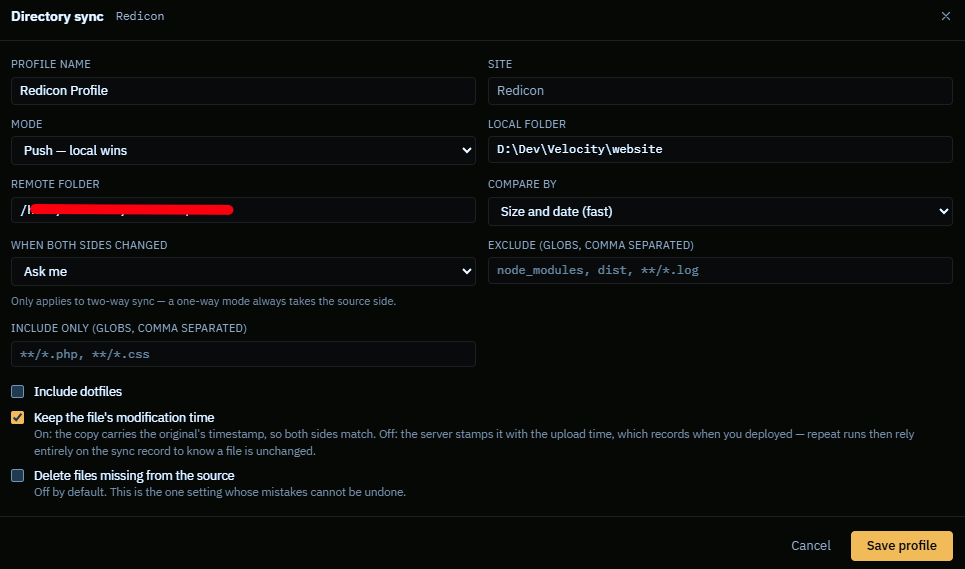
- Mode: Push — local wins makes the server match your PC (the deployment case). Pull does the reverse; two-way copies changes in both directions, and when a file changed on both sides your conflict setting decides (it asks by default).
- Local and remote folder: point at the folder you actually deploy — the build output, not the whole project.
- Exclude / Include only: glob patterns such as
node_modules, **/*.logkeep things off the server. - Delete files missing from the source: off by default. Leave it off until you trust the folder pair.
3. Read the dry run
A dry run moves nothing. It lists every action with its reason — modified, added, unchanged — so you can untick anything you do not want.
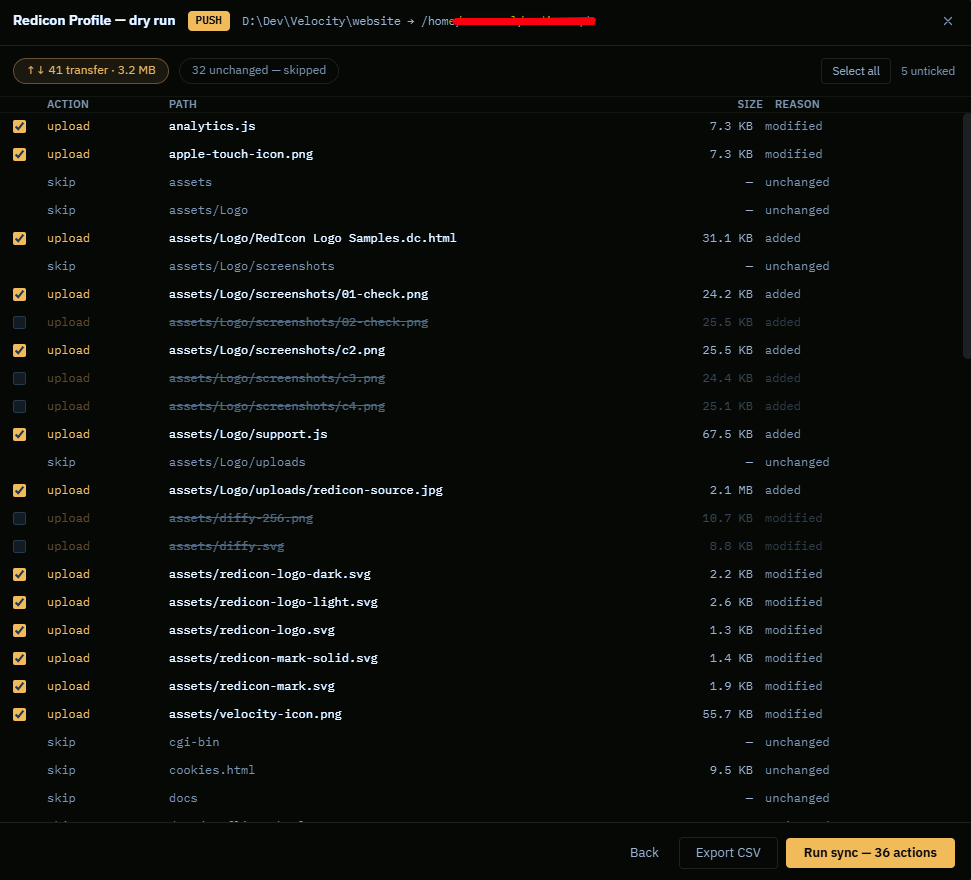
Check three things: unexpected deletes (almost always a wrong folder), the count (148 actions after changing two files means the comparison is not matching them up), and direction. Export CSV keeps a record of what a production deployment was about to do.
4. Run it
Run sync executes exactly that plan through the normal transfer queue, so it can be paused and resumed. Afterwards the Sync report shows what transferred, what was skipped and what failed.
Habit worth keeping: dry-run every time you deploy to production. It takes seconds and it is the moment a wrong folder gets caught — before it empties a server.
Questions
Which protocols does this work with?
SFTP, FTPS (explicit and implicit) and plain FTP. Velocity Bridge can also reach Google Drive through your own Google Cloud client.
Will it delete files on my server?
Only if you turn on deleting files missing from the source. It is off by default, and the dry run lists every delete before anything happens.
Can I sync both ways?
Yes. Push makes the server match your PC, Pull makes your PC match the server, and two-way copies changes in both directions — when a file changed on both sides, it asks you by default.