How to compare two images and find which pixels changed
A UI screenshot before and after a CSS change, an exported icon, a chart regenerated by a script — they look the same at a glance, and you need to know whether anything actually moved.
Looking at two images side by side is surprisingly bad at finding small changes. Diffy Pro gives you four ways to look, one of which paints every changed pixel red.
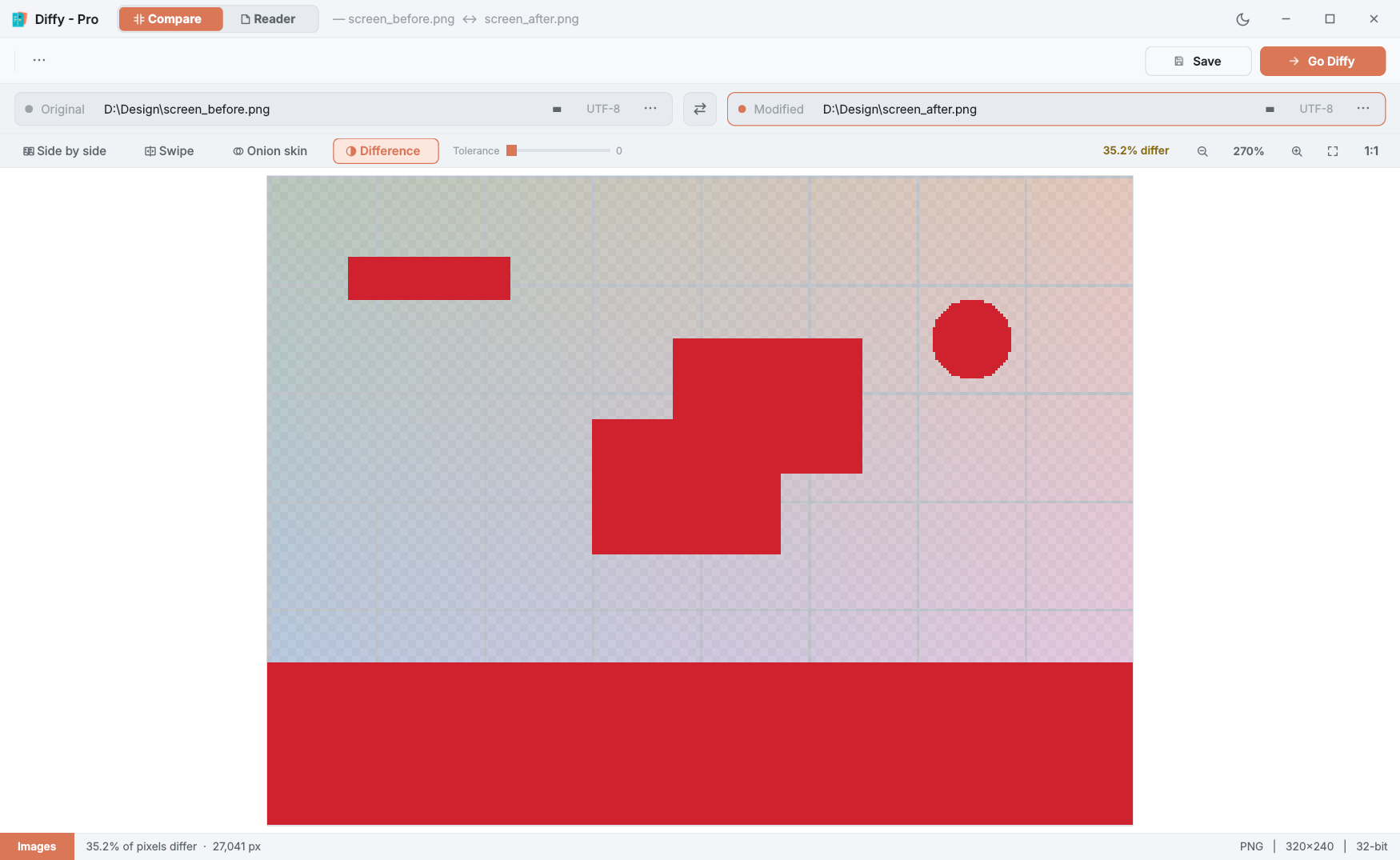
The four modes
- Side by side — both images with one shared zoom and position, so they cannot drift apart as you pan.
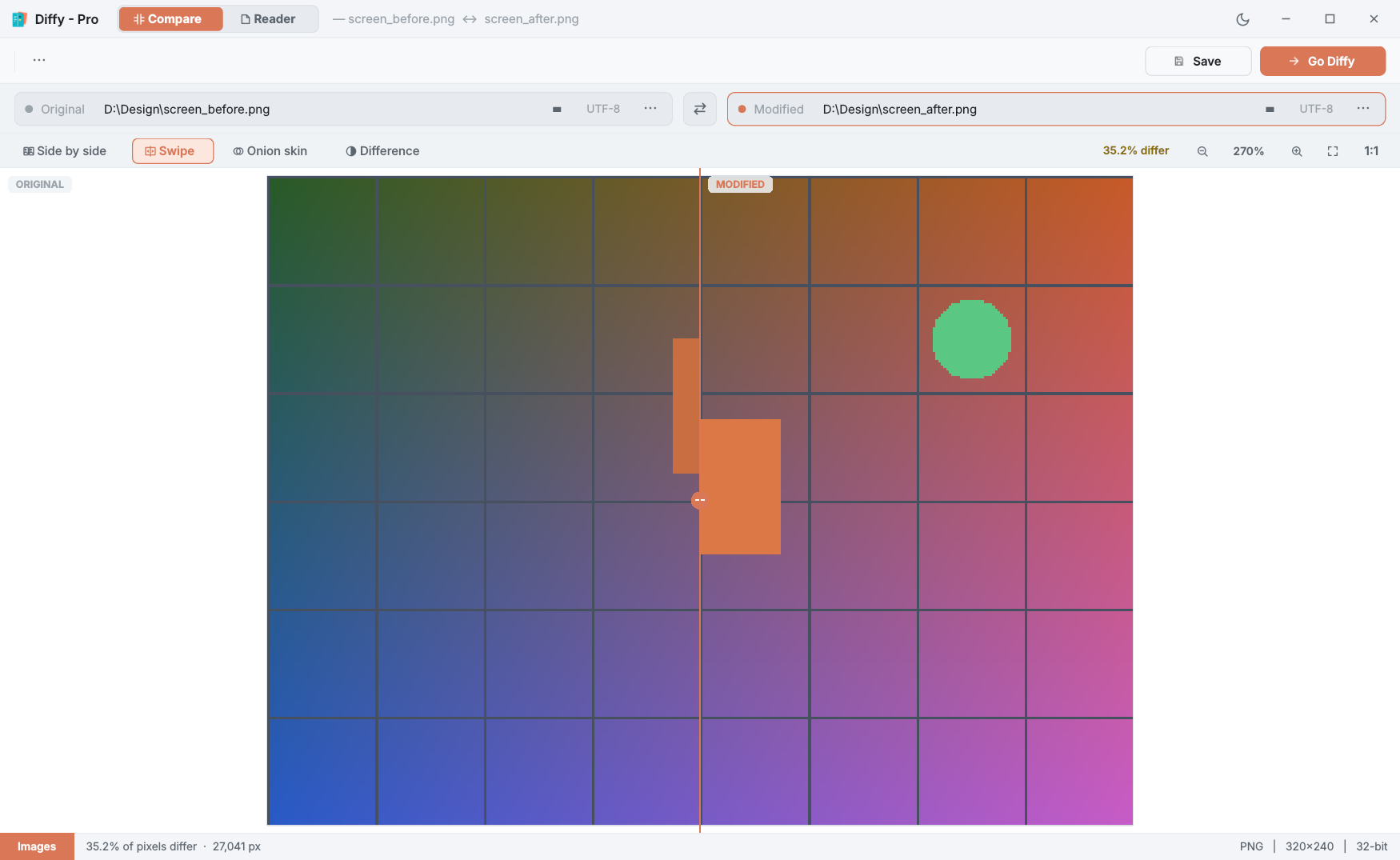
- Swipe — the images stacked, with a divider you drag across to reveal the new one. Good for layout shifts.
- Onion skin — the new image faded over the old with a slider; anything that moved shows as a ghost.
- Difference — the original dimmed and every differing pixel in red, with the percentage of changed pixels.
Step by step
- Open both images exactly like text files: drop them on the panes, or select them in File Explorer and choose Compare in Diffy Pro.
- Start with Difference to see whether anything changed at all, and where.
- Raise Tolerance (0–64) if JPEG compression or anti-aliasing paints noise everywhere; only real changes stay red.
- Zoom in with the mouse wheel and hover a pixel: the status bar shows its coordinates and its colour in both images.
- Switch to Swipe or Onion skin to understand what the change looks like.
Good to know
- Re-exported images re-compare by themselves. Save the image again from your design tool or test run and Diffy picks it up, keeping your zoom.
- Different sizes are aligned top-left and compared where they overlap — never rescaled.
- Very large images (above about 64 megapixels) still show in every mode; only the difference mask is skipped.
Questions
Which image formats are supported?
PNG, JPEG, BMP, GIF, WebP, TIFF, ICO, TGA and the other common formats. SVG is compared as text, because it is markup.
What if the images are different sizes?
Diffy never stretches an image. Both are aligned at the top-left corner, compared where they overlap, and the extra area is flagged.
Is image compare in the free version?
No, it is part of Diffy Pro. The free version compares text files.