How to compare and merge two code or config files on Windows
Two versions of the same file — a config from production and one from your branch, a script someone edited, a file from a zip — and you need to know exactly what changed, then keep some changes and not others.
The fastest way to answer "what changed?" is a side-by-side diff that lines the two files up, highlights the lines that differ, and marks the exact words that changed inside each line. Diffy does that for any text file — C#, Python, JavaScript, PHP, SQL, JSON, YAML, XML, INI, CSV, logs — and lets you fix things in place.
1. Open the two files
Install Diffy from the Microsoft Store (free). Then use whichever is quickest:
- From File Explorer: select both files, right-click, Compare in Diffy.
- Drag and drop: the older file onto the left pane (Original), the newer onto the right (Modified).
- From a terminal:
diffy old\appsettings.json new\appsettings.json
The comparison starts as soon as both sides are filled. If they land the wrong way round, the ⇄ button swaps them.
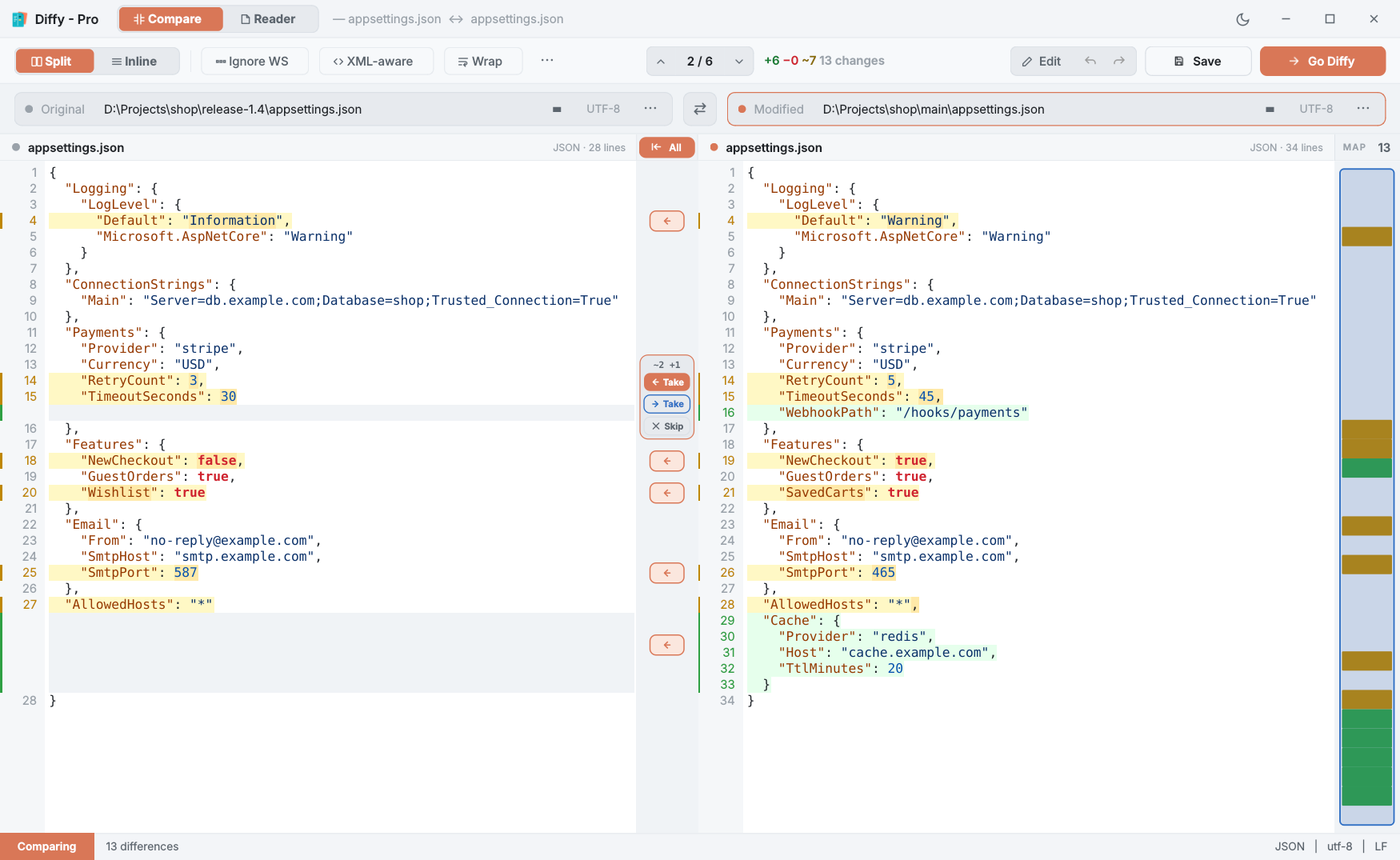
appsettings.json. Changed values are amber, new keys green; the card in the middle merges a change either way.2. Read the result
- Amber lines changed, green lines were added, red lines were removed. A grey filler row keeps the two sides level.
- Inside a changed line, the exact words that differ are marked more strongly — a changed port number or a flipped
truestands out in a long line. - Blue marks a block that was moved rather than rewritten.
- The counter shows where you are (
2 / 6); Alt+↓ and Alt+↑ jump between changes, and the strip on the right maps the whole file.
If one file was re-indented or reformatted, turn on Ignore WS so that spacing differences stop counting.
3. Fix it: edit or merge
There are two ways to bring the files together.
Edit in place (free)
Press Edit and both panes become editable. The highlighting updates as you type, so you can watch a difference disappear as you fix it. Go Diffy (F5) compares again.
Take changes across (Diffy Pro)
Between the panes, every change has a button. ← Take copies the new version into the Original; → Take puts the old version back into the Modified; Skip keeps the Original and moves on. Undo and redo work as you would expect, and nothing is written until you save. More on merging.
4. Save without breaking the file
Save asks which file to write and keeps each file exactly as it came: the same encoding (UTF-8, UTF-16, Windows-1252…), the same line endings (CRLF stays CRLF; a file with mixed endings is saved with one style, and the status bar tells you), the same byte-order mark and final newline. It refuses to save — and leaves the file untouched — if you typed a character the file's encoding cannot hold, and it warns you if another program changed the file since Diffy opened it.
Large and awkward files
Diffy compares in the background, so a 40,000-line file or a minified one-line export does not freeze the window. Above 8 MB in total it switches to a quick mode that still finds every changed line. For files full of near-identical blocks, where any diff can pair the wrong lines, Diffy Pro's alignment anchors let you pin two lines together.
Questions
Which file types does Diffy compare?
Any text file: source code in any language, JSON, YAML, XML, HTML, CSS, SQL, INI, CSV, logs, Markdown and plain text. Syntax highlighting covers XML, HTML, PHP, JavaScript and TypeScript, C#, Python, SQL, CSS and JSON; other text files compare the same way without colours. Diffy Pro also compares images.
Can it compare whole folders?
Not yet. Diffy compares two files at a time. For folder comparison today, WinMerge (free) or Beyond Compare are the tools to use.
Is the free version limited in time?
No. Diffy is free with no trial period. Diffy Pro is a separate one-time purchase for merging and the advanced compare modes.