Merging Pro
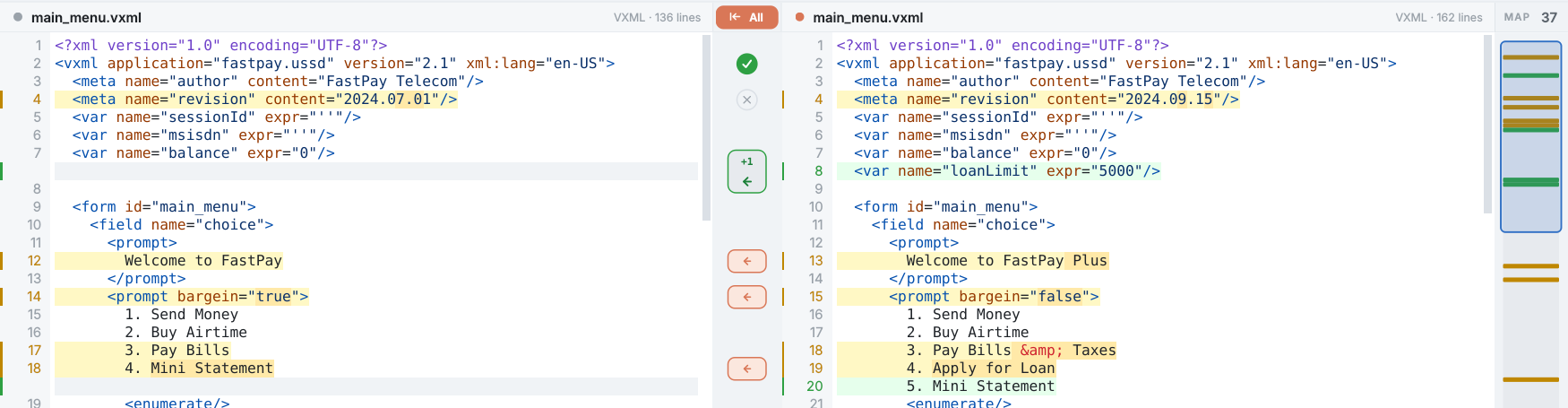
Go through the changes one at a time and decide where each belongs. Nothing touches the disk until you save — except All, which says so before it does.
The merge rail
Between the panes, every change has a button. Hover over one, or step to it with the counter, and it opens into a card with three choices:
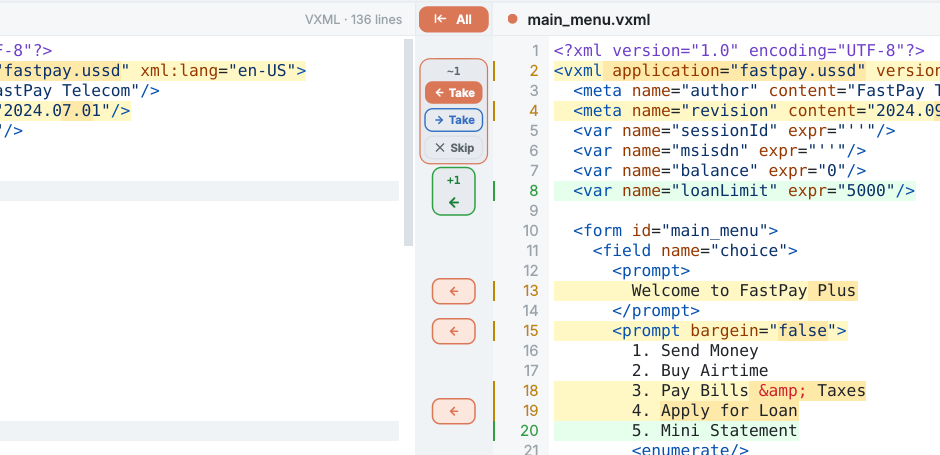
| ← Take | Copy the Modified version of this change into the Original. The usual direction: you are accepting the change. |
| → Take | Copy the Original version into the Modified: putting back what was there before. |
| Skip | Keep the Original as it is and mark the change as decided, so the counter moves past it. |
A change taken into the Original shows a green tick in the rail, one taken into the Modified a blue tick, and a skipped one a cross. Click either mark to change your mind about that one change. The status bar keeps the tally: 36 differences left · 1 merged · 1 skipped.
Undo and redo
Ctrl+Z undoes the last Take or Skip and Ctrl+Y redoes it; the ↶ and ↷ buttons next to Edit do the same. A change spanning several lines undoes in one step.
Saving a merge
Takes and skips live in Diffy until you press Save. Diffy works out each file with your decisions applied and ticks the file(s) you changed — the Original for ← Take, the Modified for → Take. Everything on Editing & saving applies: same encoding, same line endings, careful writes. After the save, Diffy compares again.
If one of the files changes on disk while you have unsaved merges, Diffy does not reload it — that would throw your decisions away. It tells you, and Save asks before overwriting.
All
The All button at the top of the rail pushes every remaining change from Modified into Original in one go. Changes you skipped stay as they are. Diffy then compares again.
All works in one direction only. A change you took the other way (→ Take) is written into the Original as the Modified's version along with the rest, and the → Take itself is not saved to the Modified. If you have used → Take, press Save before All, or use Save instead of All.
All writes the Original file straight away. It asks first and names both files, but once confirmed it cannot be undone from inside Diffy. If you are not sure, take the changes one at a time and save at the end instead.
When merging is not available
- Inline view — merging works in Split view.
- XML-aware on — the rail would merge reformatted XML into your file, so Diffy refuses and asks you to turn XML-aware off.
- Edit mode — you are editing the text directly, so there is nothing to take.