The Compare screen
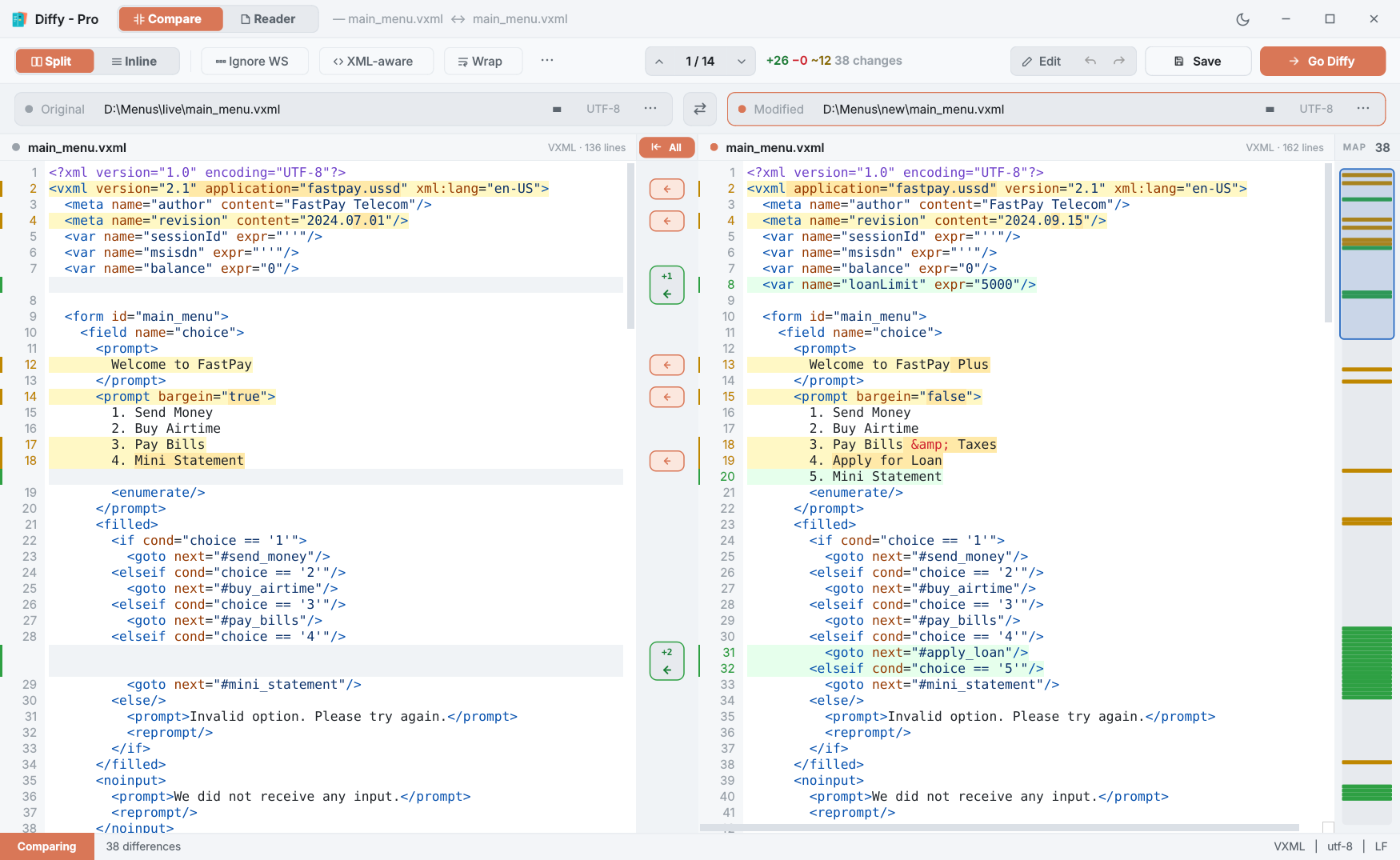
Original on the left, Modified on the right, and a strip of controls above them. This page goes through every part of it.
The title bar
The name on the left says which edition you are running — Diffy or Diffy - Pro. Next to it, Compare and Reader switch between Diffy's two screens (the Reader is in Diffy Pro), followed by the names of the files being compared. On the right, the moon or sun button switches between the light and dark themes; your choice is remembered.
The toolbar
| Split / Inline | Two panes side by side, or one pane with every change shown in place — removed lines above the lines that replaced them. Inline is in Diffy Pro. |
| Ignore WS | Treat differences in spaces and tabs as no difference. Useful when one file was re-indented. More |
| XML-aware | Compare XML by meaning: attribute order, indentation and entity spelling stop counting as changes. Diffy Pro. More |
| Wrap | Wrap long lines to the pane width instead of scrolling sideways. |
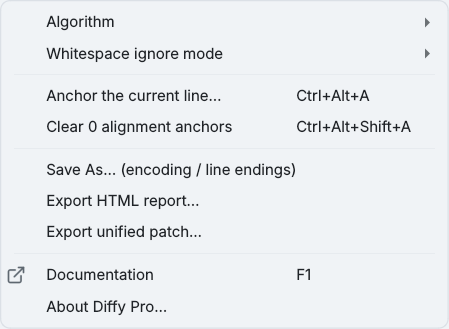
| ⋯ | The options menu: algorithm, whitespace mode, alignment anchors, Save As, exports, documentation, and About. |
| ⌃ 1 / 14 ⌄ | Which change you are on, and arrows to the previous and next one. |
| +26 −0 ~12 | Lines added, removed and changed, then the total. |
| Edit, ↶, ↷ | Edit mode, which makes both files editable; undo and redo for merges. Editing & saving |
| Save | Write your changes. It asks which file(s) to write. |
| Go Diffy | Compare again (F5). You rarely need it — picking a file compares straight away — but it is how you re-compare after editing. |
The file pickers
Each field shows the full path of its file. Type or paste a path and press Enter, open the drop-down for the last ten files used on that side, or press ⋯ to browse. The badge before the ⋯ shows the encoding Diffy detected — UTF-8, UTF-16, CP1252 and so on. In Diffy Pro, clicking it lets you force a different one.
The ⇄ button between the fields swaps Original and Modified. Everything known about each file goes with it, including unsaved edits.
The panes
Each pane has a header with the file name, its type and line count. The two scroll together. Line numbers are each file's own, so a grey filler row (a line that exists only on the other side) has no number.
Code is highlighted for XML and VXML, HTML, PHP, JavaScript and TypeScript, C#, Python, SQL, CSS and JSON. Any other text file compares just as well, without colours.
Copying leaves out the filler rows. Select a block in a pane and copy it, and you get the file's real lines — the blank padding rows that keep the sides level are not in the clipboard.
The merge rail
In Diffy Pro, the narrow column between the panes holds a button for every change, and an All button at the top. They move changes from one file to the other — see Merging. The free edition has no rail.
The change map
The MAP strip on the far right is the whole file in miniature, with a mark for every change in its colour and a box showing the part you are looking at. Click anywhere on it to jump there. The number in its header is the total number of differences.
Split and Inline
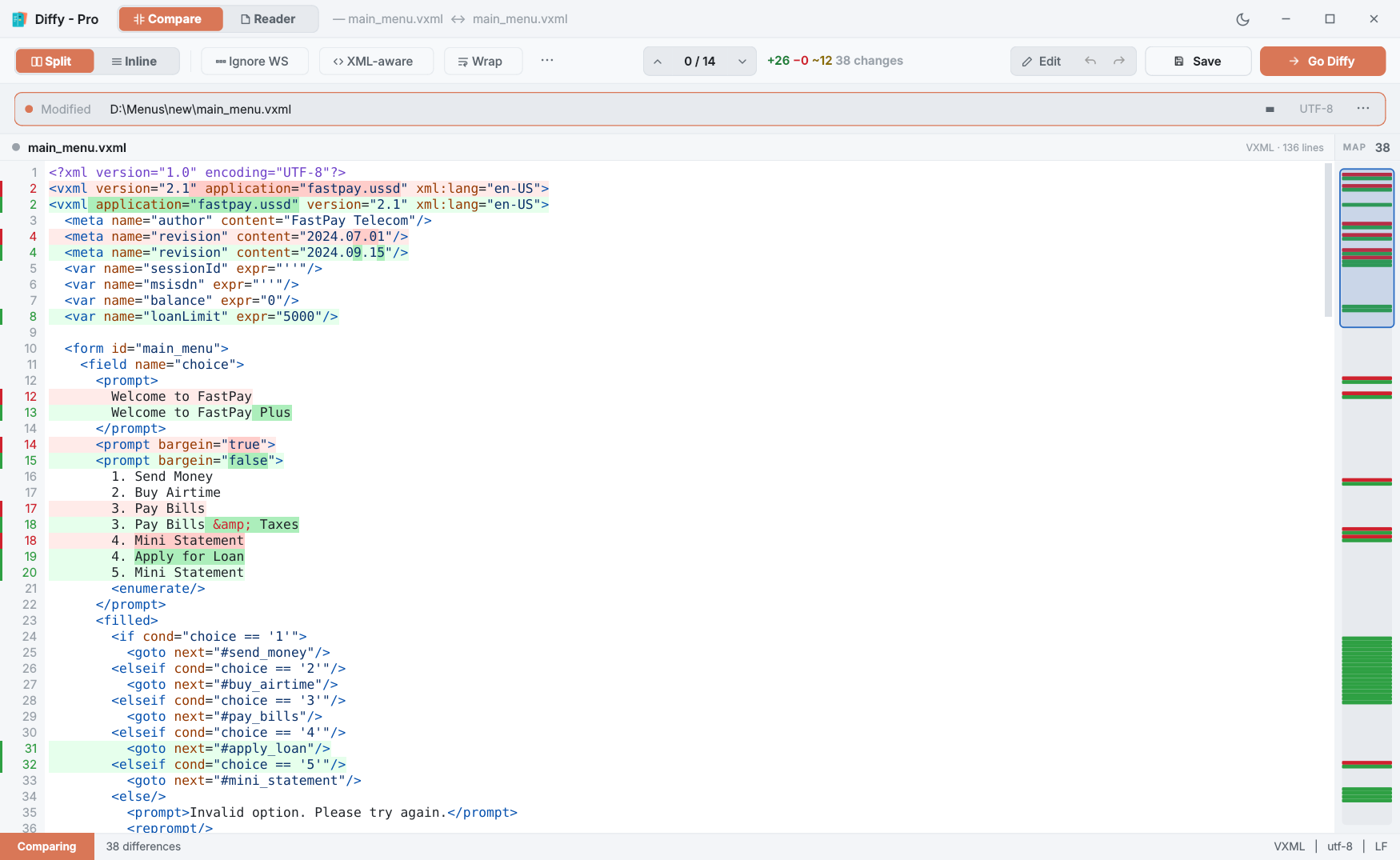
Inline (Diffy Pro) folds both files into one full-width pane: each removed line sits directly above the line that replaced it, coloured red and green. It is the easier view for long lines and narrow screens. The change map still works; merging is a Split-view action.
One file on its own
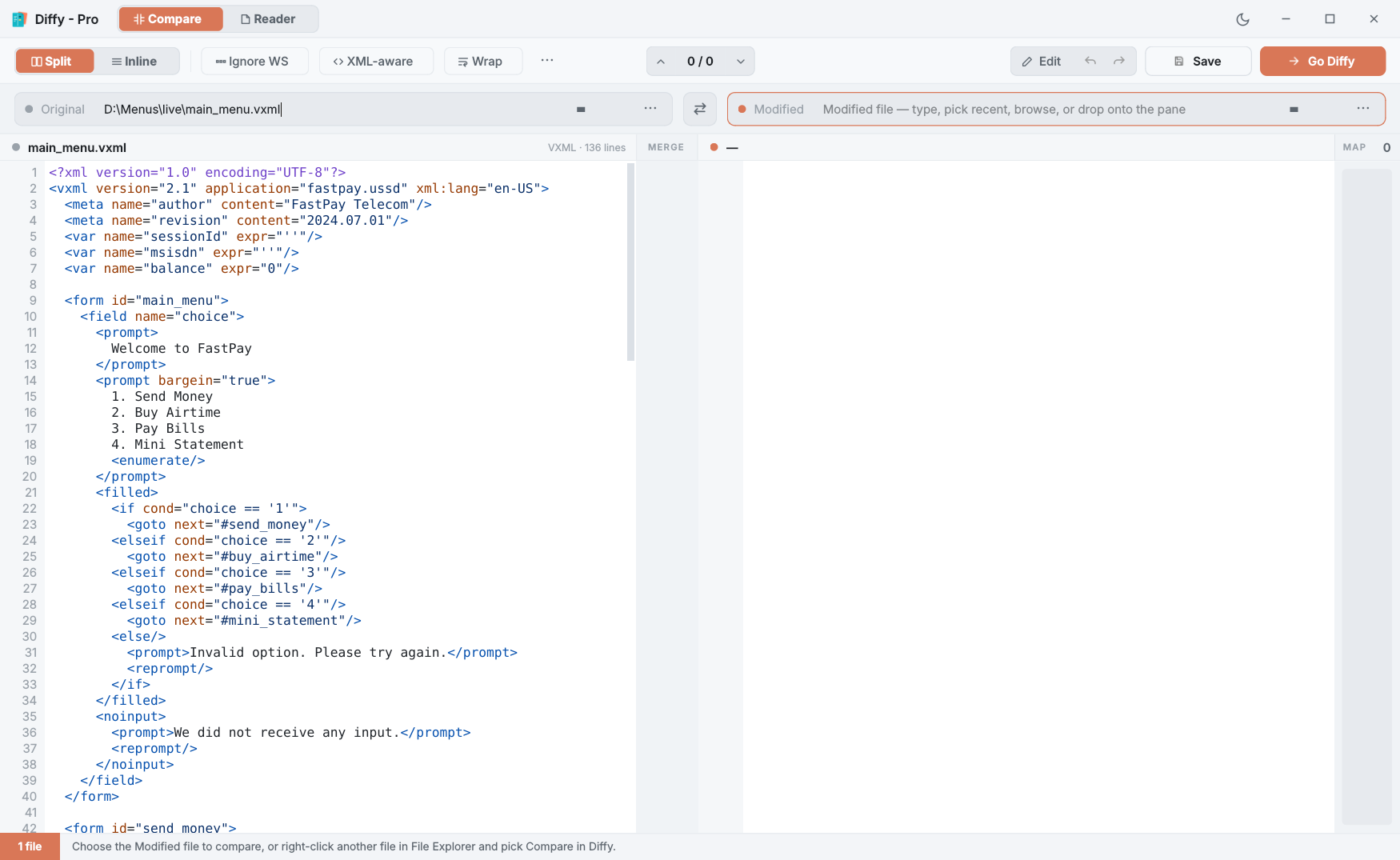
Open only one file — say, from Compare in Diffy on a single file — and Diffy shows it read-only in its pane with line numbers and highlighting, and the badge in the status bar reads 1 file. Choose the other file and the compare starts.
Finding text
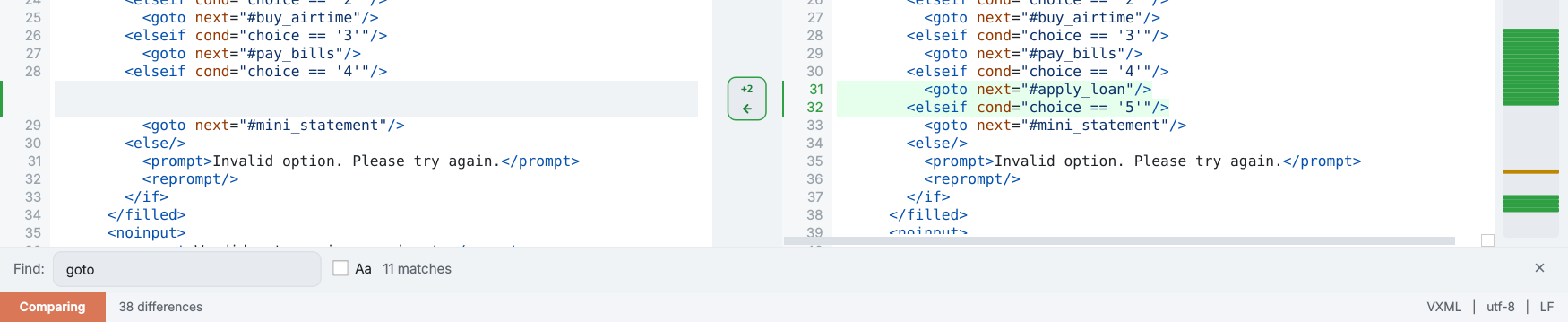
Press Ctrl+F for the find bar at the bottom of the window. It searches the pane you last clicked in, counts the matches, and Aa makes it case-sensitive. F3 and Shift+F3 step forward and back; Esc closes it.
Zoom
Ctrl++ and Ctrl+− (or Ctrl with the mouse wheel) change the text size in both panes; Ctrl+0 resets it. The size is remembered.
When a file changes on disk
Diffy watches the two files. If another program saves one of them, Diffy compares again by itself and says so in the status bar. It will not do that over your work: with unsaved edits or merges it only tells you the file changed, and Save asks before it overwrites the newer version.
Large files
When the two files add up to more than 8 MB, Diffy switches to quick mode and says so in the status bar. Changed lines are found exactly as usual; only the word-level marking inside lines is turned off, so the compare stays fast. Lines over 20,000 characters are compared as whole lines for the same reason. The compare runs in the background, so the window stays responsive while it works.