File Explorer & file types
Diffy is on File Explorer's right-click menu, and Diffy Pro can be the app that opens your Markdown, XML or config files when you double-click them.
The right-click menu
Select one or two files in File Explorer and right-click. On Windows 11 the entries are on the first menu; on Windows 10, or under Show more options, they are in the classic menu.
| Compare in Diffy | Free edition. One or two files. |
| Compare in Diffy Pro | Diffy Pro. One or two files. |
| Edit in Diffy Pro | Diffy Pro. Opens up to 16 files in Reader tabs; the last one opened is ready to edit. |
The entries hide themselves when they do not apply — for a folder, or for more files than they take.

Where the files go
Two files become Original and Modified and are compared straight away. File Explorer does not say which one you clicked first, so if they land the wrong way round, press ⇄ Swap.
One file is placed so that you can pick the other one the same way:
- If Original is empty, it goes there, and Diffy shows it on its own until the second file arrives.
- Otherwise, if Modified is empty, it goes there and the compare starts.
- If both are already filled, it replaces the Original; the next one replaces the Modified, then the Original again, and so on.
So: right-click the first file, Compare in Diffy; right-click the second, Compare in Diffy — and they are compared.
One window per edition
If Diffy is already open, files sent from File Explorer go to that window, which comes to the front, rather than starting a second copy. Diffy and Diffy Pro each keep their own window. Opening Diffy from a terminal or git always starts a fresh window, so a script never disturbs the one you are working in.
Opening file types with Diffy Pro Pro
Diffy Pro can be the app that opens a file type when you double-click it — handy for Markdown, which Windows otherwise opens as plain text. Double-clicked files open in the Reader in Read mode.
The first time you run Diffy Pro it shows Open files with Diffy Pro, with Markdown already ticked. You can open it again any time from ⋯ → File associations….
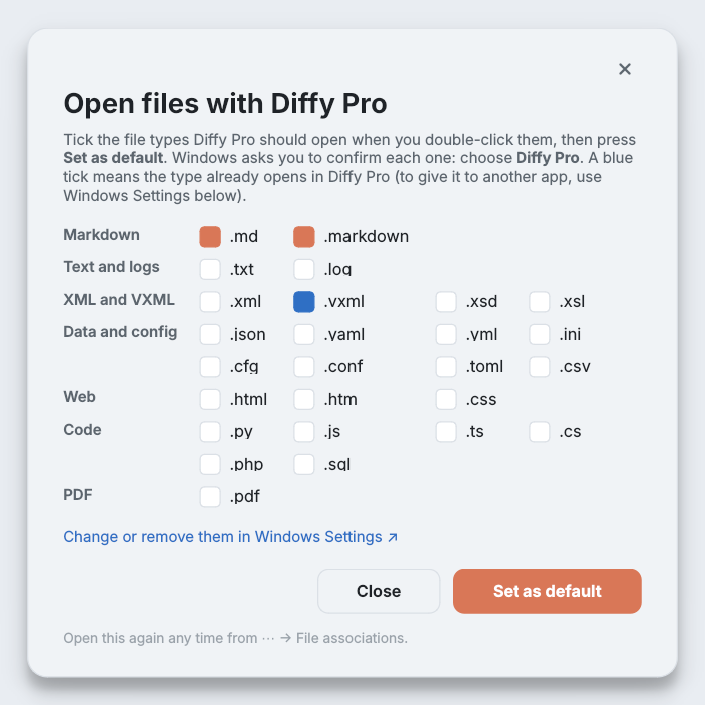
- Tick the types you want — Markdown, text and logs, XML and VXML, data and config files, web files, code, or PDF.
- Press Set as default. For each type, Windows shows its own Select an app to open .md files box: choose Diffy Pro and confirm. Windows does not let any app make itself the default, so this step is always yours.
- The dialog reads the result back from Windows. It closes when every type took; otherwise it names the ones that did not.
A blue tick means Windows already opens that type with Diffy Pro. It is locked, because Diffy never changes other apps' file types: to give a type back to another app, use Change or remove them in Windows Settings, which opens Diffy Pro's page under Default apps.
Installing Diffy Pro adds it to the Open with list for all of these types whether or not you make it the default.