The Reader Pro
Diffy's second screen, for one file at a time: read a Markdown file the way it is meant to look, check a PDF, or search and fix a config file — in tabs.
Switch to it with Reader in the title bar. Open files with the + at the end of the tab strip or Ctrl+O, drop them onto the window, double-click a file type you have given to Diffy Pro, or right-click a file in File Explorer and choose Edit in Diffy Pro. Ctrl+W closes the current tab.
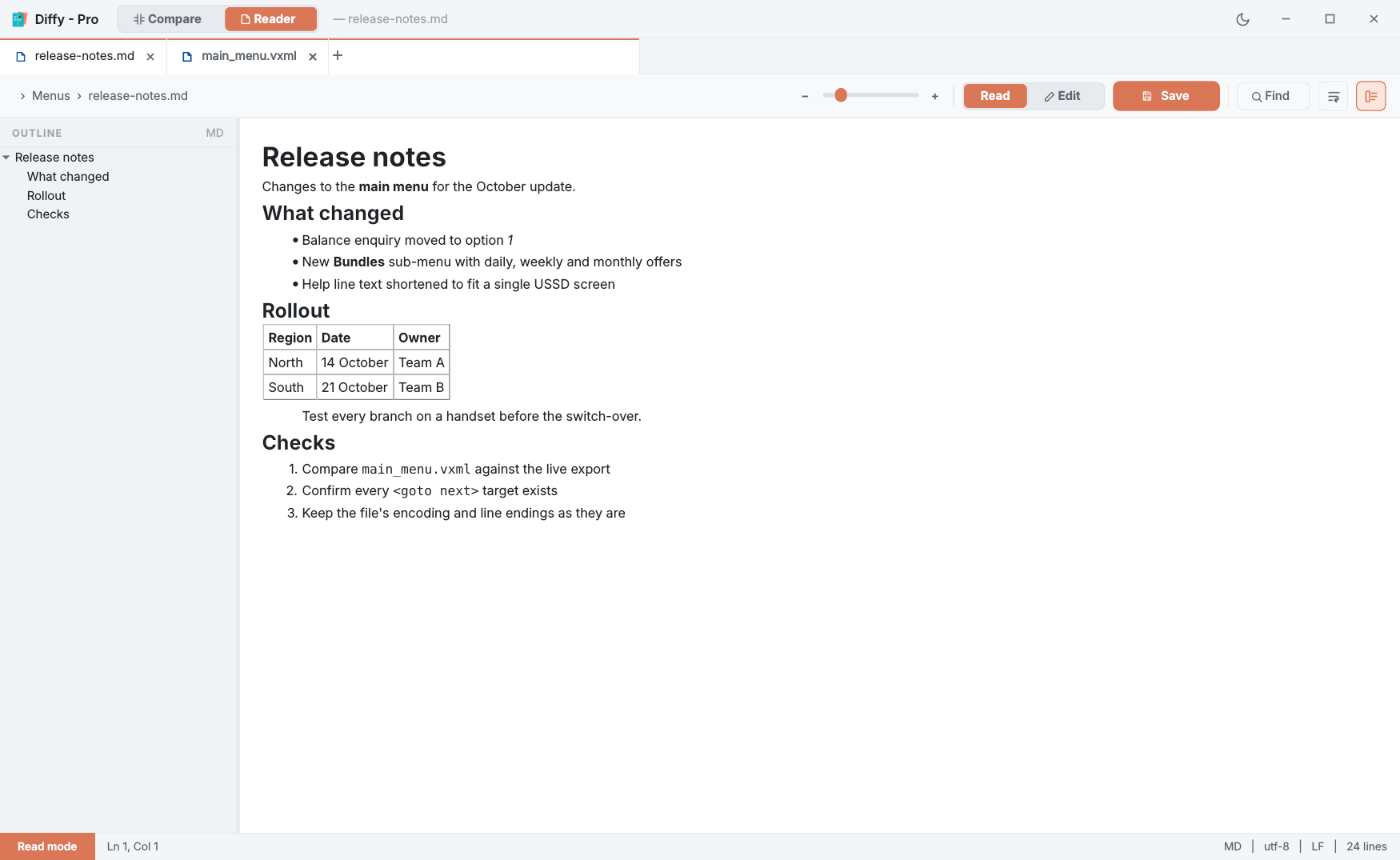
Read and Edit
Every tab is in Read or Edit mode, switched on the toolbar. Read mode cannot change the file by accident. For Markdown and HTML, Read mode shows the page rendered — headings, lists, tables, links and pictures, with relative image paths resolved from the file's folder — and Edit mode shows the source. Other files show as highlighted text in both modes; Edit simply lets you type. Links in a rendered page open in your browser.
File types
| Markdown | .md, .markdown and friends — rendered in Read mode. |
| HTML | Rendered in Read mode as a simple page. Complex sites look better in a browser: the ↗ button opens the file in yours. |
| A built-in viewer, all pages, fitted to the width. View-only. ↗ opens it in your default PDF app. | |
| Everything else | Any text file, highlighted for XML/VXML, HTML, PHP, JavaScript/TypeScript, C#, Python, SQL, CSS and JSON. |
| Images | The Reader offers to open them on the Compare screen instead, where image compare lives. |
The outline
The panel on the left lists a Markdown file's headings, or an XML file's elements as a tree — with the id, name, cond, event or next value beside each tag, which makes a VXML menu easy to navigate. Click an entry to jump to it. The outline button on the toolbar hides the panel, and its width is remembered.
Find & replace
Ctrl+F or Find opens the panel. Matches are counted as you type; Aa matches case, ab matches whole words, and .* treats the text as a regular expression. F3 and Shift+F3 step through the matches. In Edit mode, Replace changes the current match and All changes every one.
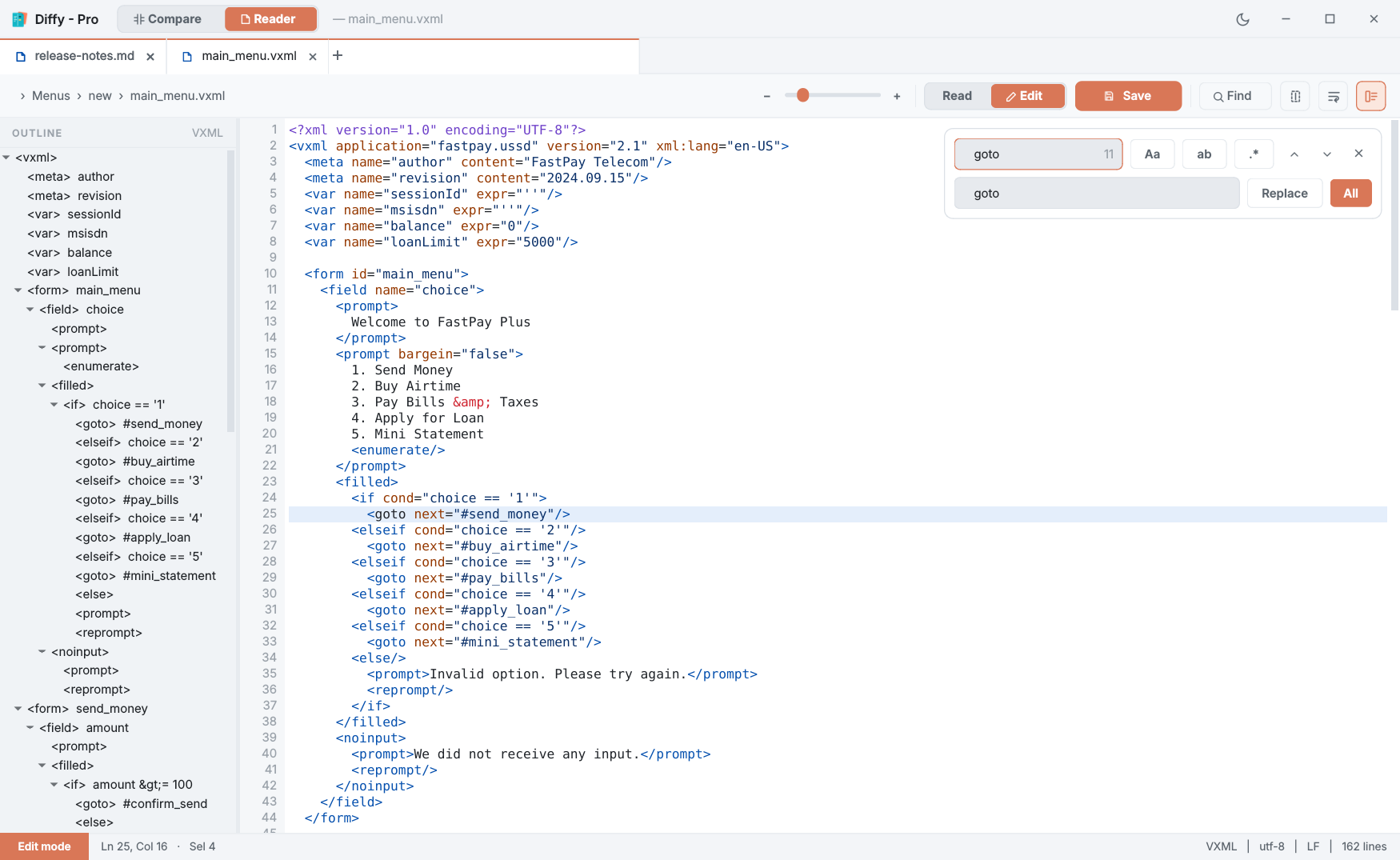
Column selection
In Edit mode, the column-selection button (or Shift+Alt with the arrow keys) selects a rectangle instead of whole lines. Typing, Backspace and Delete then act on every line at once, and Ctrl+C, X and V copy, cut and paste the block. With the button on, dragging with the mouse draws the rectangle too. Shift+Alt+PgUp/PgDn extends it a page at a time, and Shift+Alt+Home/End to the edge of the paragraph.
Zoom, wrap and the status bar
The slider on the toolbar zooms the current tab only — text, rendered pages and PDFs — and each tab remembers its own size. The wrap button wraps long lines. The status bar shows the line and column, the selection, and the file's type, encoding, line endings and length.
Saving
Save or Ctrl+S writes the current tab with the same care as the Compare screen: same encoding and line endings, a warning if the file changed on disk, and nothing written if the encoding cannot hold a character you typed. Closing a tab or the app with unsaved changes asks first. The Reader's tabs, their modes and zoom are reopened next time; unsaved edits are not.