When a file already exists
Overwriting is the one action in a file transfer client that destroys something. Velocity Bridge is deliberately slow to do it.
What happens by default
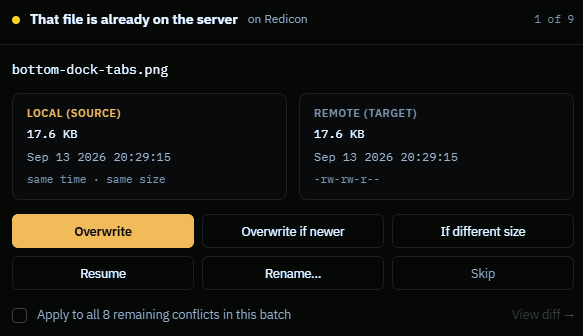
When a transfer would replace an existing file, the queue holds that item and asks. It does not overwrite silently, and it does not skip silently — both of those produce the same complaint six hours later, that the file on the server is not the one you thought.
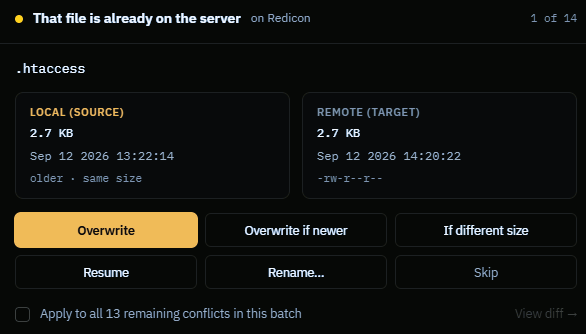
The dialog shows both copies side by side with size, timestamp, and a plain comparison: newer, older, same time; larger, smaller, same size. Full walkthrough in Every dialog explained.
You can change the default under Settings → Transfers if you would rather always overwrite, always skip, or always overwrite when newer.
Choosing well
| Deploying updated files | Overwrite if newer. Sends what you changed, leaves the rest alone. |
| Server does not keep timestamps | If different size. Some servers stamp everything with the upload time, which makes "newer" meaningless. |
| Continuing an interrupted upload | Resume — but only if the destination is genuinely a partial copy of the same file. |
| Not sure yet | Skip, then look at both copies properly. Skipping costs you one more transfer later; overwriting wrongly costs you the file. |
Checking before you transfer
Answering a dialog forty times is not a workflow. The pre-flight scan answers the question once, for the whole batch, before anything starts.
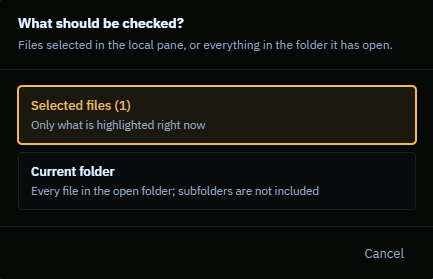
Right-click in a pane and choose Check for conflicts. Velocity Bridge asks what to scan — the current selection, or the whole folder (subfolders are not included) — compares the two sides, and reports:
7 of 240 files in this folder already existThen the review screen lets you decide what to do with those seven, and whether the other 233 ride along, before a single byte moves. Cancel transfers nothing.
The confirm button always states the count — "Transfer 31 files" — so the number you agree to is the number that happens.
"No matching files in this folder" means the scan checked and found nothing that would be overwritten. That is a useful answer, not a failure: it is permission to go ahead without thinking about it.
Limits worth knowing
- The scan is one folder deep. Subfolders are not included, by design — a recursive scan of a deep tree is a slow operation that looks like a hang.
- Large folders stop at a cap. You will see "(scan stopped at the file limit)". The picture is then incomplete and the per-file dialog still applies to the rest.
- Comparison is by size and timestamp, not by content. Two files of the same size and time are treated as the same file. Full content comparison is what the visual diff will do when it lands.