The two panes
Your computer on the left, the server on the right, and everything in between is about moving things from one to the other.
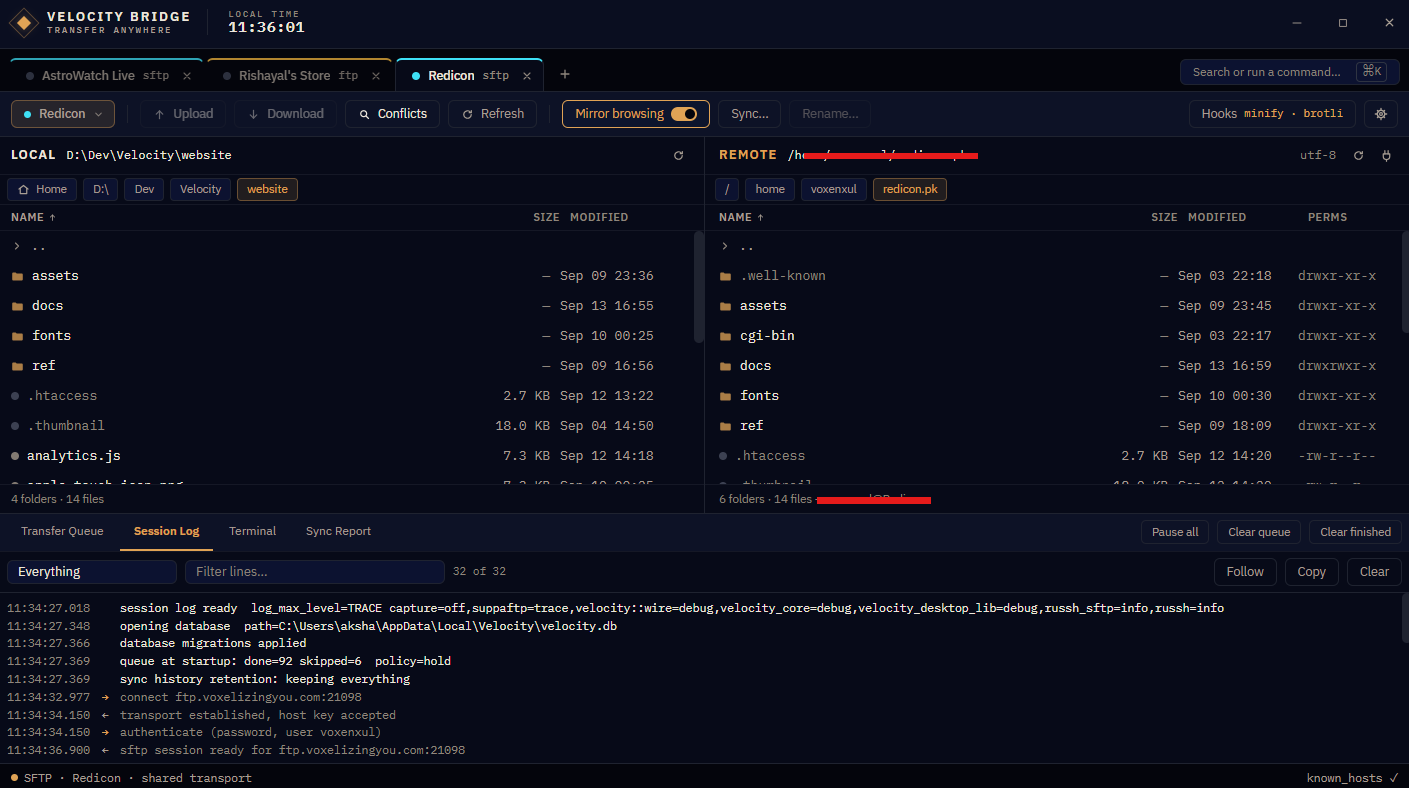
Left is yours, right is theirs
The layout is fixed and deliberately so: local on the left, remote on the right, always. Muscle memory is worth more than configurability here — you should never have to check which side you are deleting from.
The colour coding reinforces it everywhere in the app: amber for local, cyan for remote. Progress bars, transfer directions and the Orbital Link theme's instruments all follow that same rule.
Tabs
Each tab holds its own connection. That is the important part — tabs are not views onto one session, they are separate sessions, so you can have production open in one and staging in another without either affecting the other.
- Ctrl+T opens a tab, Ctrl+W closes one.
- Ctrl+Tab cycles.
- Closing a tab disconnects its session. Transfers already queued from it continue.

Transfers are queued globally, not per tab. The queue shows which tab each item came from, so a transfer you started from staging stays identifiable after you have moved on.
Getting around
| Breadcrumb bar | The path across the top of each pane. Every segment is clickable — jump up three levels in one click rather than pressing Back repeatedly. |
| Type a path | Click the breadcrumb's empty area to edit the path directly. Useful for somewhere deep you already know. |
| Drive shortcuts | On the local pane, quick access to your drives and common folders. |
| Sorting | Click a column header. Sorting is per pane and remembered. |
| Refresh | F5. Velocity Bridge does not poll the server continuously — if someone else changed something, refresh to see it. |
Mirrored browsing
Turn it on and the two panes follow each other: open /var/www/site/assets on the right and the left pane moves to the matching folder beneath your chosen local root, if it exists.
This is the feature that makes a deployment tree feel like one filesystem instead of two. It is also the one that quietly saves you from uploading the right file into the wrong folder, which is a mistake that looks like success until somebody notices.
If the matching folder does not exist on the other side, that pane stays where it is rather than guessing.
Selecting
- Click selects one item; Ctrl+click adds to the selection; Shift+click extends a range.
- Ctrl+A selects everything in the current folder.
- Typing letters jumps to the first matching name.
- The status bar reports what you have selected and its total size before you act on it.
Moving files
Three ways, all equivalent:
- Drag from one pane to the other.
- Double-click a file to transfer it to the other side's current folder.
- Right-click → Upload / Download.
Folders transfer recursively, with their structure. Nothing moves immediately — everything goes through the queue, which is what makes it resumable.
The context menu
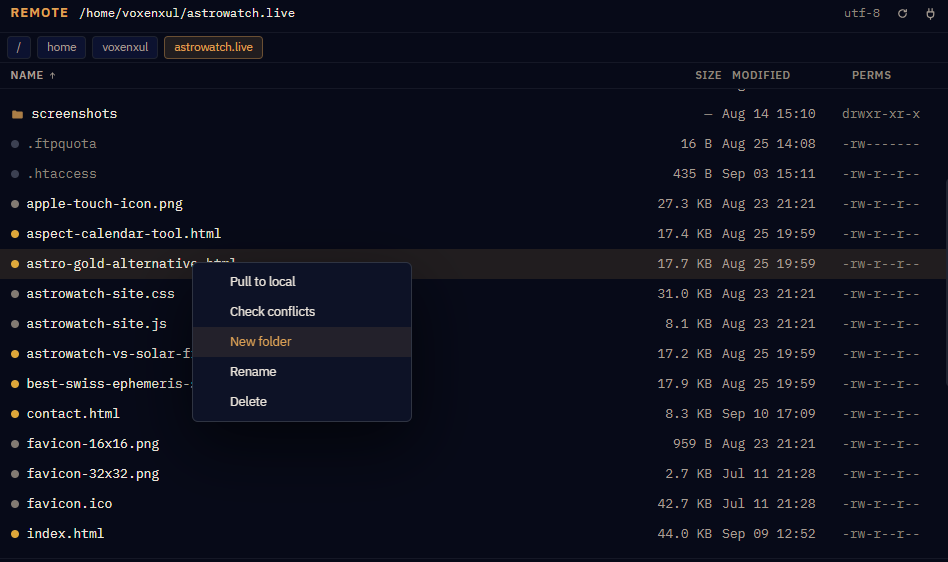
Right-click in either pane. The menu adapts to the side and to what is selected, so a remote folder does not offer you "Open in Explorer" and a local file does not offer "Change permissions".
| Upload / Download | Queue the selection for transfer. |
| Rename | One item at a time. Bulk rename is not in 0.9. |
| Delete | Asks first. On the remote side there is no recycle bin — it is gone. |
| New folder | Creates it on whichever side you clicked. |
| Copy path | The full path, for pasting into a terminal or a ticket. |
| Properties / permissions | Size, timestamps, and on the remote side the Unix permission bits where the server exposes them. |
| Check for conflicts | A pre-flight scan — see When a file already exists. |
The bottom dock
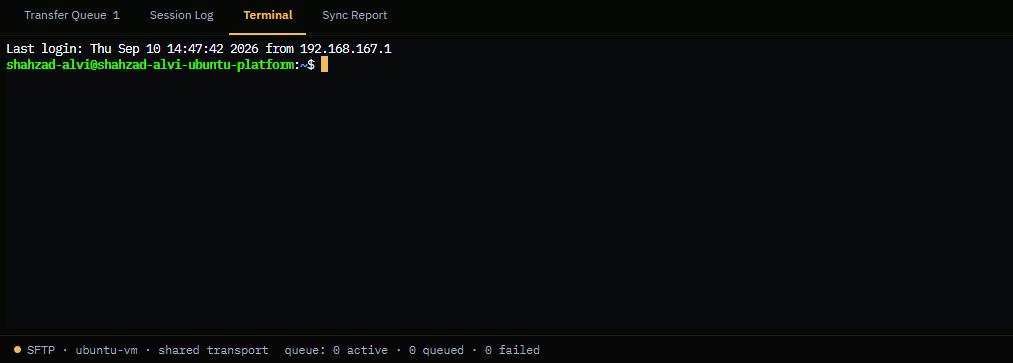
Four panels share the space below the panes. Drag the divider to resize, or collapse the dock entirely when you want the panes full height.
| Queue | Everything transferring, waiting or finished. See Transfers & the queue. |
| Session log | Every command and reply on the wire, passwords stripped. The first place to look when a server misbehaves. |
| Sync report | The result of the last sync or dry run. |
| Terminal | A shell on the server, over the SFTP connection you already have. See The SSH terminal. |