The Orbital Link theme
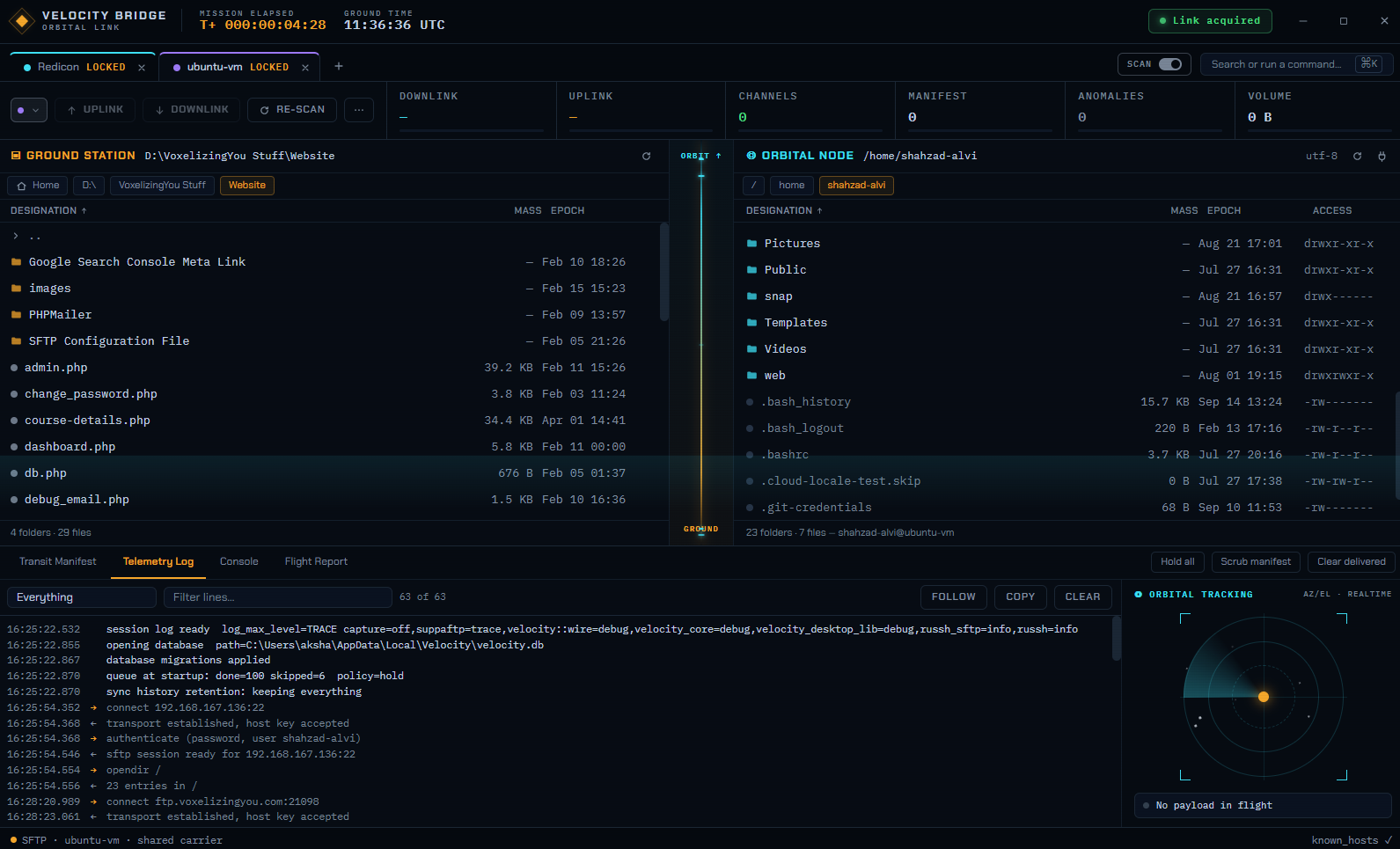
One of Velocity Bridge's themes dresses the app as a satellite ground station. Nothing about how it works changes — only the words on the labels. This page translates every one of them back into plain file-transfer English.
It is a skin, not a mode. Orbital Link renames labels and adds some ambient motion. It does not change what any button does, add any feature, or remove one. Switch to it or away from it at any time under Settings → Appearance; nothing you have saved is affected.
Why it exists
A file transfer is, structurally, a ground station talking to something far away over a link that can drop: you queue what to send, you watch throughput, you notice when something fails, you resume when the link comes back. Mission-control instrumentation has had a hundred years to get good at showing exactly that, so the metaphor fits better than most skins do.
The cost is a vocabulary nobody was born knowing. Hence this page.
The telemetry strip
The row of gauges along the bottom of the window. Each cell is a live number with a fill bar behind it; the bar is scaled against the highest value seen this session, so it shows relative activity rather than an absolute maximum.

| Theme label | Plain English | What it is actually counting |
|---|---|---|
| DOWNLINK | Download speed | Combined rate of everything currently downloading, in bytes per second. Cyan, because cyan is the remote side everywhere in the app. |
| UPLINK | Upload speed | Combined rate of everything currently uploading. Amber, the local side's colour. |
| CHANNELS | Transfers running now | How many files are moving at this instant — not how many are queued. Capped by Settings → Transfers → Max concurrent transfers. |
| MANIFEST | Files still waiting | The backlog: queued but not started. A manifest is a ship's cargo list, which is what a transfer queue is. |
| ANOMALIES | Failures | Transfers that stopped with an error this session. If this is not zero, open the queue and look. It is the one cell that is telling you to do something. |
| VOLUME | Total moved | Bytes transferred since the app started, up and down together. Resets when you close the app. |
| MISSION ELAPSED | Time since launch | How long the app has been open, as T+ days:hh:mm:ss. Cosmetic — nothing depends on it. |
| GROUND TIME | Your clock | The current local time. Labelled LOCAL TIME in the other themes. |
The link corridor
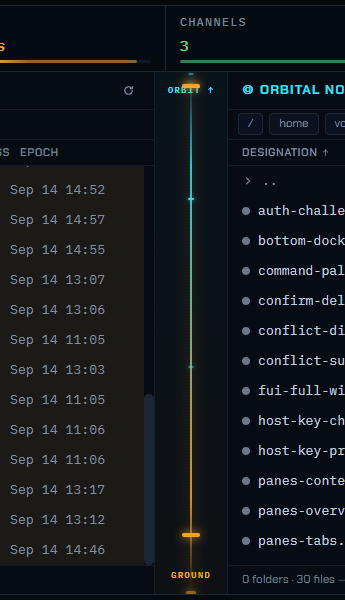
The narrow vertical strip between the two file panes.
| Theme label | Plain English | Notes |
|---|---|---|
| ORBIT ↑ | The remote server | The top end of the corridor. Everything above it belongs to the machine you connected to. |
| GROUND | Your computer | The bottom end. Your own disk. |
| (travelling dots) | Active transfers | Not decoration on a timer. Dots only move while something is genuinely transferring, and they move in the direction it is going — amber climbing for an upload, cyan descending for a download, both at once if both are happening. A still corridor means nothing is moving. |
Orbital tracking
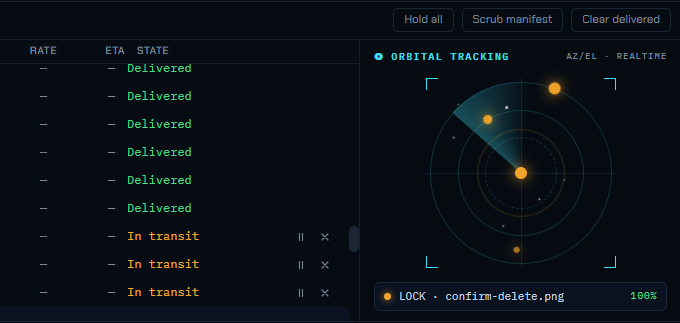
The circular scope in the corner — the part that looks most like a radar screen. It shows what is in flight right now.
| Theme label | Plain English | Notes |
|---|---|---|
| ◎ ORBITAL TRACKING | Transfers in progress | The panel's title. |
| AZ/EL · REALTIME | (nothing) | Azimuth/elevation — decorative. Shown when there is nothing more useful to say. |
| n TRACKED | n transfers running | Replaces the line above when there are more transfers than the scope can draw at once. |
| LOCK · filename | Currently transferring: filename | The file the scope has "locked onto" — in practice, the active transfer it is highlighting. |
| No payload in flight | Nothing is transferring | The queue is empty or paused. Not an error. |
| (orbiting dots) | One dot per transfer | Amber dots are uploads, cyan are downloads — the same colour rule as everywhere else. |
| LINK ACQUIRED | Connected | A session is open and authenticated. |
Two colours, one rule
This is worth internalising because it holds across the whole app, in every theme:
Once you have that, most of the theme reads without translation: an amber dot climbing towards ORBIT is a file going from your machine to the server.
Cosmetic switches
Under Settings → Appearance, both labelled "Fictional" because that is exactly what they are — neither reflects anything real about your connection:
- Fictional: scanlines — faint horizontal lines over the window, like a CRT monitor.
- Fictional: CRT glow — a soft vignette and bloom at the edges.
Turn both off and you keep the vocabulary and the colours without the period screen effects. Neither affects performance meaningfully, and neither is on by default.
If the animations do not move
This is almost always a Windows setting, not a fault. Velocity Bridge honours your system's reduced-motion preference: if Windows is set to minimise animation, the app switches all ambient motion off — the travelling packets, the rotating sweep, the orbiting dots. The numbers keep updating; only the movement stops.
This catches Windows 10 users most often, because the setting is off by default on many machines and is switched off automatically by the "Adjust for best performance" option in System Properties.
Windows 10: Settings → Ease of Access → Display → turn on Show animations in Windows.
Windows 11: Settings → Accessibility → Visual effects → turn on Animation effects.
Then restart Velocity Bridge. If the motion still does not appear, the app's WebView2 runtime may be out of date — update Microsoft Edge WebView2 Runtime from Apps & features, or write to support@redicon.pk.
Leaving the setting off is a perfectly good way to use the app. Nothing in the movement carries information that is not already in a number or a colour — that is the rule the theme was built to, so that turning motion off never costs you anything you need.
Prefer the plain version?
Settings → Appearance → Theme and pick any other theme. The labels revert to DOWNLOAD, UPLOAD, ACTIVE, QUEUED, FAILED, TRANSFERRED and LOCAL TIME, and the panes lose the corridor and the scope. Everything else is identical — same queue, same sites, same behaviour.