Every dialog explained
Every window Velocity Bridge can put in front of you, what it is actually asking, and which button to press. In roughly the order you will meet them.
Two rules that hold for all of them. Esc always cancels and always means "do nothing". And clicking the dimmed background never closes a dialog — that was deliberate, because losing a half-typed passphrase to a stray click is worse than one extra keystroke.
Unrecognized server
When: the first time you connect to an SFTP server.
SSH has no certificate authorities. The only thing that tells you the machine answering is the one you meant is its host key fingerprint, and the only way to know the right fingerprint is to have been told it out of band — by your hosting provider's panel, or by whoever runs the server.
| Key type | The algorithm, e.g. ssh-ed25519. Informational. |
| Fingerprint (SHA-256) | The value to compare. This is the whole point of the dialog. |
The buttons
| Don't connect | Abandon it. The right answer whenever the fingerprint does not match what you were told, or you have no way to check and the data matters. |
| Connect once | Connect now, remember nothing. You will be asked again next time. Useful for a server you are touching once. |
| Trust and remember | Pin this key for this host. You will not be asked again unless the key changes. |
WARNING: host key has changed
Treat this as serious until proven boring. The server is presenting a different key from the one you pinned. There are two explanations: the server was genuinely rebuilt or its keys rotated — or something is sitting between you and it, and will see your password the moment you type it.
Velocity Bridge deliberately makes this one difficult. It shows the new fingerprint alongside the one already on file, and to proceed you must type the new fingerprint out by hand into the confirmation box. A mismatch is rejected with "That doesn't match the fingerprint shown."
That friction is intentional. A one-click "trust anyway" is how people click through the single prompt that was protecting them. If you cannot be bothered to type it, you should not be accepting it.
Before accepting: ask whoever runs the server whether the host key changed, and get the new fingerprint from them. Then compare — do not just copy what is on screen.
Replace stored key pins the new one and forgets the old. Don't connect is always available and always safe.
Unverified certificate
When: connecting over FTPS to a server whose TLS certificate your computer will not vouch for — most often a self-signed certificate, an internal certificate authority, or one that has expired.
The dialog shows who the certificate claims to be for, who issued it, its validity dates, and its SHA-256 fingerprint. As with host keys, the fingerprint is the part that means anything: compare it with the one the server's administrator gave you.
Accepting pins that exact certificate for that host. It does not make your client trust that issuer generally, and it does not lower your standards for any other server. If the certificate later changes, you are asked again.
Every certificate you have accepted is listed, with its fingerprint, under Settings → Security, and can be revoked from there.
Additional authentication required
When: the server asks for something beyond a stored password — a one-time code, a token, a second factor, or a password-change prompt.
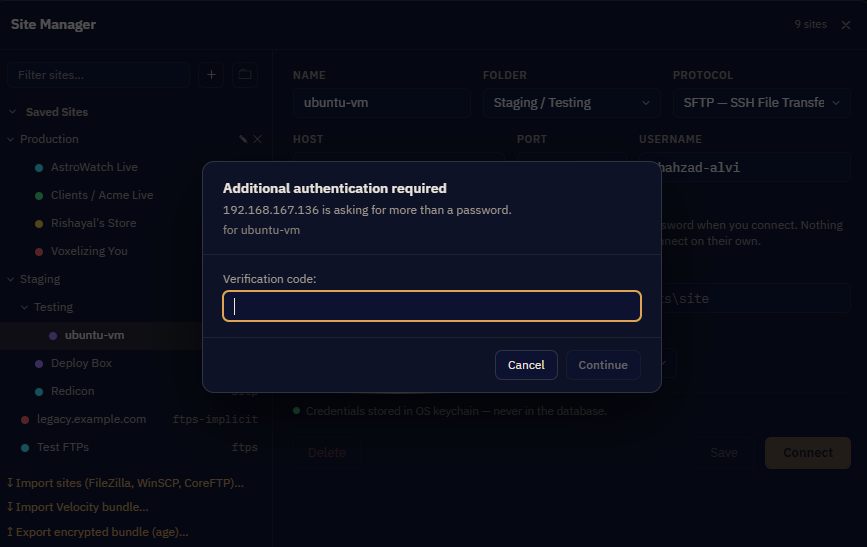
This is SSH keyboard-interactive authentication. The server sends the questions; Velocity Bridge just renders them, which is why the wording varies between servers and is not something the app controls. Answers are typed, sent, and not stored.
"That wasn't accepted. Check the answers and try again." means the server refused the responses — usually an expired code rather than a typo, since most codes are valid for thirty seconds.
When a file already exists
When: a transfer would overwrite something at the destination.
Both copies are shown side by side — LOCAL (SOURCE) against REMOTE (TARGET) for an upload, the reverse for a download — each with its size and timestamp, and a plain comparison between them: newer / older / same time, and larger / smaller / same size. The counter in the corner reads "3 of 11" so you know how far into a batch you are.
The six choices
| Overwrite | Replace the destination file. Unconditional. |
| Overwrite if newer | Replace only when the source is more recently modified. The everyday choice for pushing updated files to a server. |
| If different size | Replace only when the sizes differ. Useful where timestamps are unreliable — some servers do not preserve them. |
| Resume | Treat the destination file as a partial transfer and continue from where it stopped. Offered when that is plausible; wrong if the two files are genuinely different, since it would splice one onto the other. |
| Rename… | Keep both. Opens a field for the new name; Enter confirms. |
| Skip | Leave the destination alone and move on. Nothing is transferred for this file. |
"Apply to all N remaining conflicts in this batch" is the checkbox that saves you from answering the same question forty times. It applies only to the current batch — it is not a setting, and the next transfer asks again.
View diff is present but disabled in 0.9; the visual comparison is not built yet.
What should be checked?
When: you ask for a pre-flight conflict check and there is more than one sensible thing to check.
| Selected files (n) | Only what is highlighted right now. |
| Current folder | Every file in the open folder. Subfolders are not included — this is the part people are surprised by. |
Review before transferring
When: after a pre-flight scan finds files that already exist.
This is the "look before you leap" screen, and the one worth reading properly. It reports what the scan found — "7 of 240 files in this folder already exist" — and then what will happen if you proceed: how many conflicts you resolved, how many files were unaffected, how many you skipped.
The breakdown line reads like "31 to transfer — 7 resolved + 24 unaffected · 2 skipped". "Unaffected" means files with no conflict at all; the checkbox "Also transfer N files that have no conflict" controls whether they ride along.
Nothing has moved at this point. Cancel transfers nothing at all. The confirm button states the count explicitly — "Transfer 31 files" — so the number you agree to is the number that happens.
You may also see "(scan stopped at the file limit)", which means the folder was larger than the scan cap and the picture is incomplete.
Directory sync
When: Toolbar → Sync, with a connection open. "Connect to a site before running a sync" means exactly that.
A profile saves which two folders to keep in step and how. Profiles persist, so a sync you set up once is one click thereafter.
Each profile holds the local folder, the remote folder, the direction (one-way or two-way), what to do about deletions, and how conflicts are decided.
Dry run — use it
A dry run moves nothing. It produces the complete list of every upload, download and delete the sync would perform, and then stops. Read it, and only then press Run.
The dry run is exportable with Export CSV if you would rather read it in a spreadsheet, or keep it as a record of what a deployment was about to do.
The run button states the scale — "Run sync — 148 actions" — for the same reason the transfer button does.
Delete and other confirmations
When: an action cannot be undone — deleting files, removing a saved site, revoking a trusted key.
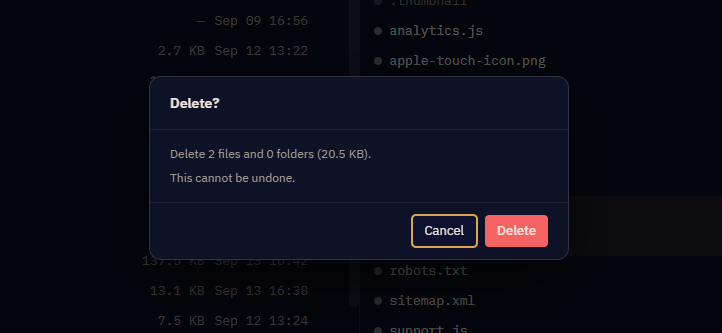
The dialog names what will be affected and how many. There is no recycle bin on a remote server: a deleted remote file is gone, and Velocity Bridge cannot get it back for you.
Site Manager
When: Toolbar → Sites, or Ctrl+S.
Where servers are stored, in up to two levels of folders. Each site holds its protocol, host, port, username, authentication method, optional starting folders for each pane, and per-site transfer settings.
Passwords are not stored here. They go to Windows Credential Manager; the site record keeps only a reference. See Security.
Importing from FileZilla, WinSCP or CoreFTP reads their configuration and brings sites across. Passwords do not come with them — those stay in the other program's store, and you will be asked on first connect.
Export / import a site bundle
When: moving your sites to another computer.
The bundle is a single encrypted file protected by a passphrase you choose. The passphrase is not recoverable. It is not stored anywhere, not by us and not on your machine; a forgotten passphrase means an unreadable bundle.
Whether saved passwords are included is your choice at export time. Excluding them means re-entering them on the other machine — often the right answer if the bundle will travel by email or a shared drive.
Settings
When: Toolbar → Settings, or Ctrl+,. Six sections; each is covered in full under Settings.
| General | Startup behaviour, language, confirmations. |
| Appearance | Theme, including Orbital Link and its two cosmetic switches. |
| Transfers | Concurrency, retries, default conflict behaviour, timestamp preservation. |
| Security | Every trusted host key and accepted certificate, with fingerprints, each revocable. |
| Paths | Where settings, the database and logs live, with an Open button for each. |
| About | Version, the user guide, and licence information. |
Command palette
When: Ctrl+K.
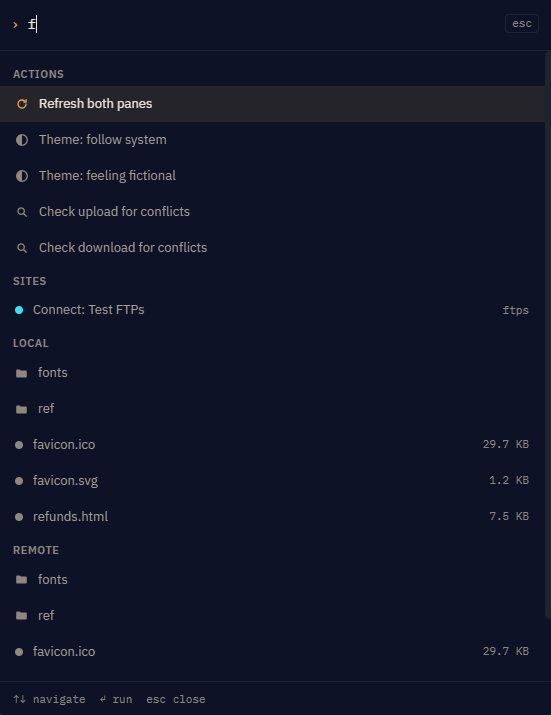
Type a few letters of what you want and press Enter. It reaches every command in the app, including several with no button anywhere — the fastest route to Sync, Site Manager, the terminal and the user guide.
Passwords cannot be saved
When: the operating system's credential store is unavailable.
Rare on Windows. It matters on Linux, where a headless machine may have no keyring at all, or where a Snap install has not been granted the password permission. The notice tells you which case it is, and what to run to fix it.
There is no fallback store. While this notice is showing, passwords work for the current session and are forgotten when you close the app. Velocity Bridge will not quietly write them to a file instead — that is the whole reason for the warning.