The SSH terminal
A real shell on the server, riding the SFTP connection you already have open. Restart the service, tail the log, fix the permission — without opening another application.
Opening it
The Terminal tab in the bottom dock, or from the command palette (Ctrl+K). It is available whenever an SFTP session is connected.
Not on FTP or FTPS. Those protocols have no shell to offer — the terminal is an SSH feature, and FTPS is FTP with TLS, not SSH.
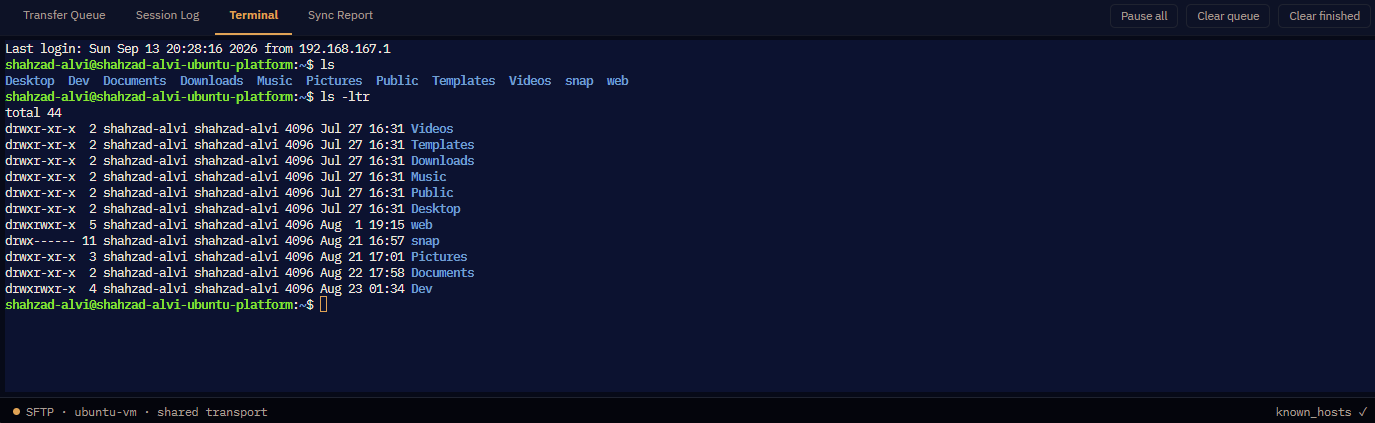
One connection, not two
The terminal opens a channel on the SSH transport that is already carrying your file transfers. It is not a second connection.
That has practical consequences worth knowing:
- No second handshake, no second password. It is instant.
- It works on servers that allow one session per user. A separate SSH client would be refused; this is not a separate session.
- It does not consume another connection slot against per-user limits.
- It shares the connection's fate. If the session drops, the shell drops with it — and re-attaches automatically when the link comes back.
What you get
| A proper PTY | Interactive programs work — top, less, nano, vim. Not a command-runner that prints output. |
| 256 colour and truecolor | Coloured ls, syntax highlighting and TUI programs render as intended. |
| 10,000 lines of scrollback | Enough to scroll back through a long build or a log dump. |
| One shell per tab | Each tab keeps its own shell, surviving tab switches. Your working directory and running program are where you left them. |
| Automatic re-attach | After a dropped link, the shell comes back rather than making you start again. |
Ctrl-click a filename
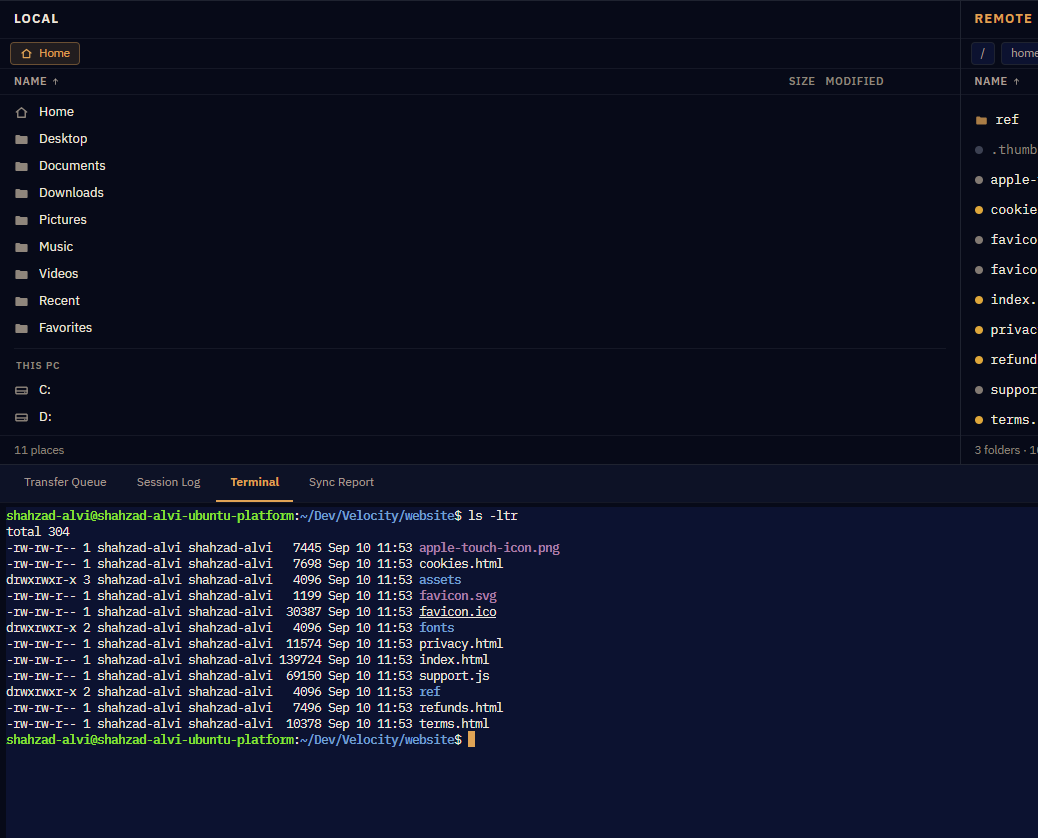
Run ls and the names in the output become clickable. Ctrl+click a directory and the remote pane navigates to it; Ctrl+click a file and the pane selects it.
Why it sometimes does nothing
Links only appear while the terminal and the remote pane are looking at the same folder. This is deliberate, and worth understanding rather than filing as a bug.
There is no guesswork about which word in a line is a filename — every rule for that breaks on something. Instead, the names are matched against the listing the remote pane already has. So the question "is this token a file?" has an exact answer rather than a heuristic one.
The cost is that when the terminal has cd-ed somewhere the pane is not showing, nothing lights up. That is the right trade: a link that navigated to a same-named file in a different directory would be considerably worse than no link at all.
To get links back, point the remote pane at the folder the terminal is in — or cd to the folder the pane is showing.
One known gap: a filename wrapped across two terminal lines is not matched. It simply does not underline.
Practical notes
- The pane does not auto-refresh when a shell command changes the directory. Press F5.
- Copy and paste work as expected; selecting text copies on some shells, so use the explicit copy if a selection disappears.
- Long-running commands keep running while you use the rest of the app. The shell is not blocked by transfers and transfers are not blocked by it.
- The session log does not include terminal traffic. It logs the file-transfer protocol, not what you type into a shell.